Two uses
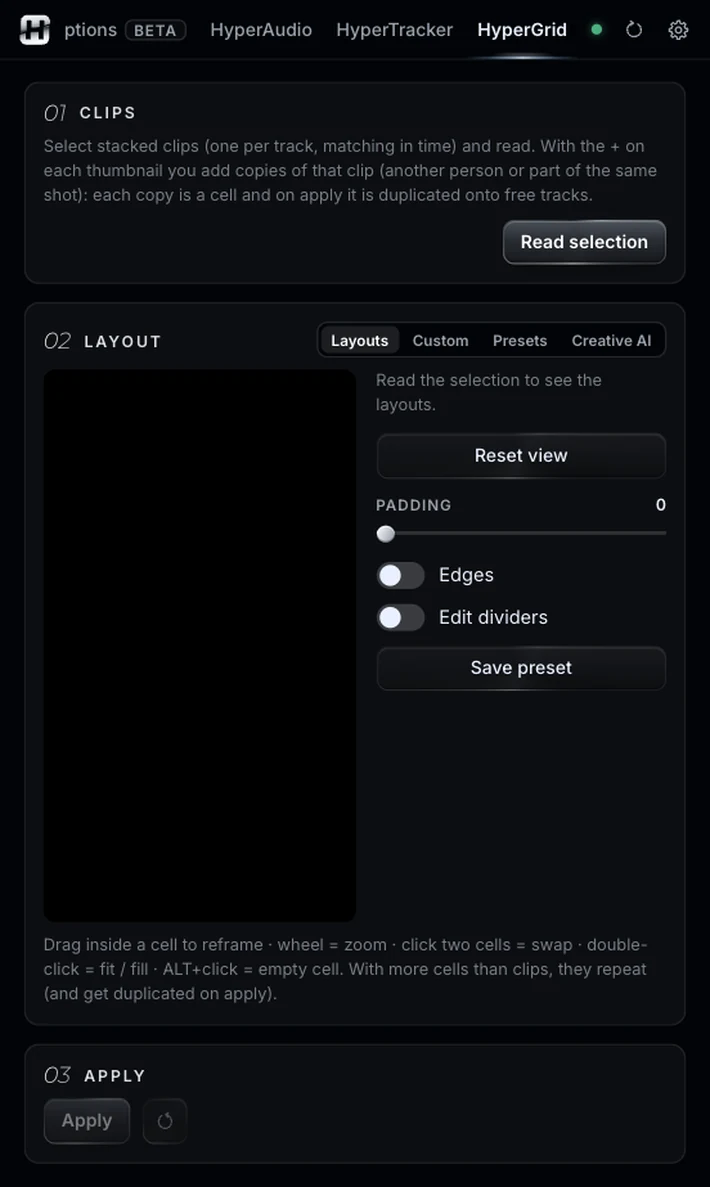
One clip with several people or objects: the + on its thumbnail adds a copy for each, every copy is a cell and it is duplicated onto free tracks when you apply. Or several stacked clips, one per track and overlapping in time.
With one clip or several, in 9:16 or 16:9. HyperGrid writes position, scale and crop for you.
Illustrative animation. Pause it with the button at the bottom right.
Sound familiar?One wide camera, and a vertical cut with everyone in their own box.
You shot a podcast on a single wide camera and the client wants the vertical version with each person in their own box. Or you want three clips on screen at once.
Working out position, scale and crop for every clip by hand is a nightmare of numbers.
Read the clips, pick a grid, frame each cell, apply.
One clip with several people or objects: the + on its thumbnail adds a copy for each, every copy is a cell and it is duplicated onto free tracks when you apply. Or several stacked clips, one per track and overlapping in time.
Recommended ones for your clip count and format, a custom rows-and-columns grid, your presets, or Creative AI, which invents nine new layouts on every press.
Drag inside a cell to reframe and use the wheel to zoom. Click two cells to swap them; double-click to fit or fill; Alt+click leaves a cell empty.
Padding between cells, outer borders and editable dividers that snap to halves, thirds and quarters. Save the result as a preset.
Apply writes position, scale and crop on each clip, all editable in Effect Controls. Reset returns the clips as they were and removes the duplicates it made.
A real job, with the buttons named as in the panel.
A wide shot, two people, a 9:16 cut.
Select the wide shot and press Read selection.
Press the + on the thumbnail: one copy, one cell per person.
Choose the two-row layout for 9:16.
Drag in each cell to frame each person, then press Apply.
HyperGrid lays the clips out. Others prepare and finish them.
Same panel, same license. Every tool works on its own and hands off to the next.
Edit by typing: one-cut summaries, topic clips, multicam podcasts.
02Captions you don’t have to redo, and text you can animate by hand.
03Animated captions inside Premiere, line by line and editable.
04Clean the voice, split the music, cut silences on the waveform.
05Make text follow whatever moves, or stabilize a shot.
07The one-click buttons Premiere is missing.
08Your own sound library, placed right on the hit.
09Cinematic color, guided, loaded into Lumetri.
Nine tools.
One license.