Clean voice
The first option and the default. Removes background noise without separating anything and leaves the clean voice on a new track.
With AI that runs on your computer, no cloud. Clean the voice first; separate stems if you need them.
Illustrative animation. Pause it with the button at the bottom right.
Sound familiar?The interview was recorded in a café.
Music was playing, or an air conditioner was humming next to the mic. Or the client wants the song without vocals, or just the drums for an intro remix.
HyperAudio separates and cleans the audio of the selected clips with AI tools installed on your computer, and cuts silences on the waveform with a preview before you touch the timeline.
Two cards: Cleanup & stems, and the Silence remover.
The first option and the default. Removes background noise without separating anything and leaves the clean voice on a new track.
Vocals + instrumental, vocals only, 4 stems (vocals, drums, bass, other) or 6 (adds guitar and piano). New tracks go under the original, which is muted. Reset brings it back.
Maximum quality: cleaner, about four times slower. Mute the original. Clean the voice on the vocal track as well.
Demucs (from Meta, MIT license) separates and DeepFilterNet cleans. You install the engine once from the card, about 1 GB. Stems work on macOS today.
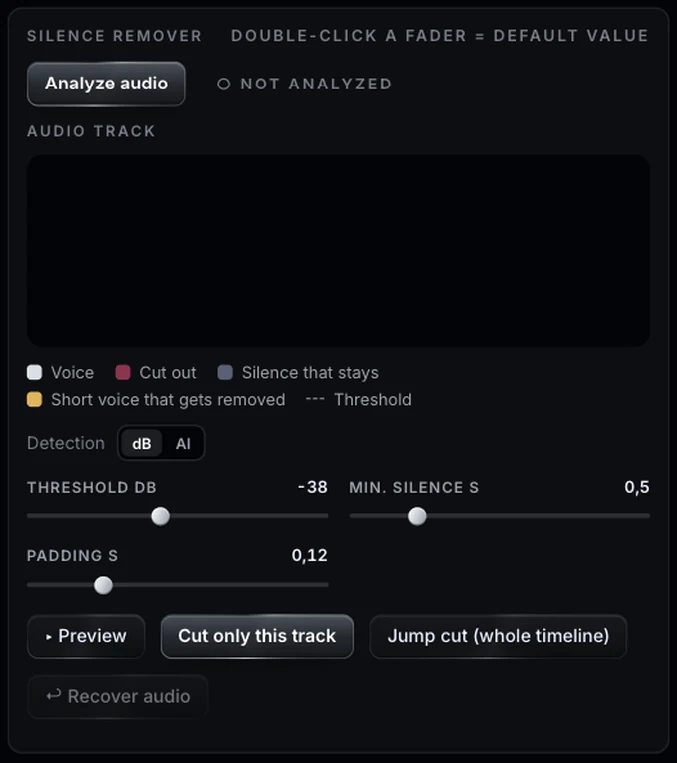
Analyzes the track you choose, on your computer, and draws the waveform with what stays and what goes. Detect by dB, or with AI: the local transcript refines where each cut starts and ends, taking breaths and voiceless noise with it.
Threshold, Min. silence and Padding decide what counts as silence, from how long it gets cut and how much air is left on each side. Preview lets you listen first.
Cut only this track leaves gaps and moves nothing else. Jump cut (whole timeline) cuts every track and closes the gaps. Recover audio undoes the last cut.
In HyperChat: “split the voice from the music in the selected clips” or “set the stems card to vocals only”.
Two jobs, with the buttons named as in the panel.
Clean the voice, and keep the original one click away.
Select the audio clip, or the video with its audio.
Clean voice is the default. Choose Vocals only with Clean the voice if there is also music.
The button reads Clean in cleaning mode and Split in the others. The result appears underneath; the original is muted. Reset brings the original back.
It cuts on the waveform of the track you choose, with a preview, so you decide exactly how much air stays.
Choose the track and detect by dB or with AI. The waveform shows what stays and what goes.
Adjust Threshold, Min. silence and Padding, then Preview.
Cut only this track to leave gaps, or Jump cut (whole timeline) for a talking head where everything follows the voice. Recover audio undoes it.
Illustrative animation. Pause it with the button at the bottom right.
HyperAudio gives the others clean sound to work with.
Same panel, same license. Every tool works on its own and hands off to the next.
Edit by typing: one-cut summaries, topic clips, multicam podcasts.
02Captions you don’t have to redo, and text you can animate by hand.
03Animated captions inside Premiere, line by line and editable.
05Make text follow whatever moves, or stabilize a shot.
06Split screens from your clips, without doing the math.
07The one-click buttons Premiere is missing.
08Your own sound library, placed right on the hit.
09Cinematic color, guided, loaded into Lumetri.
Nine tools.
One license.